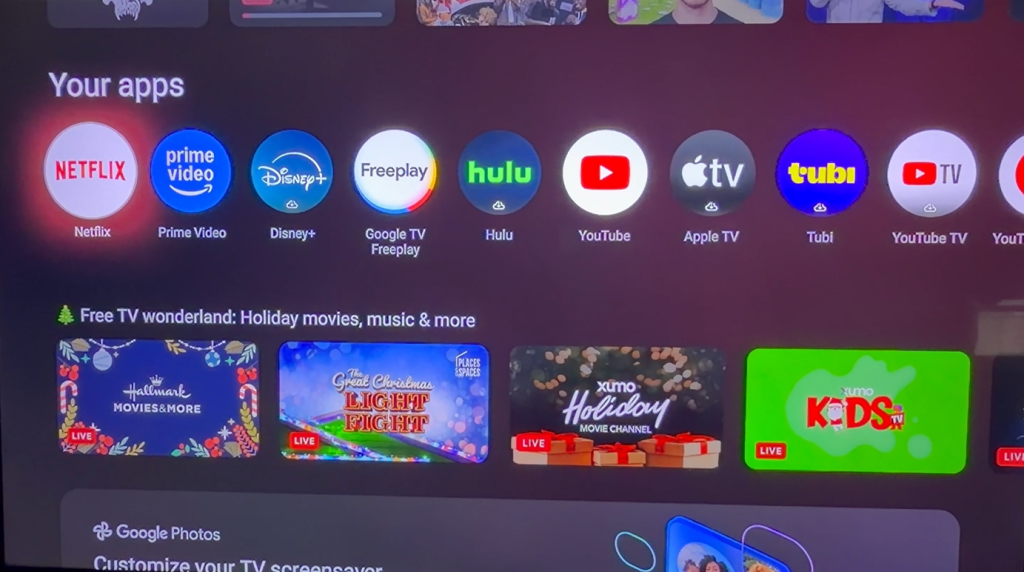
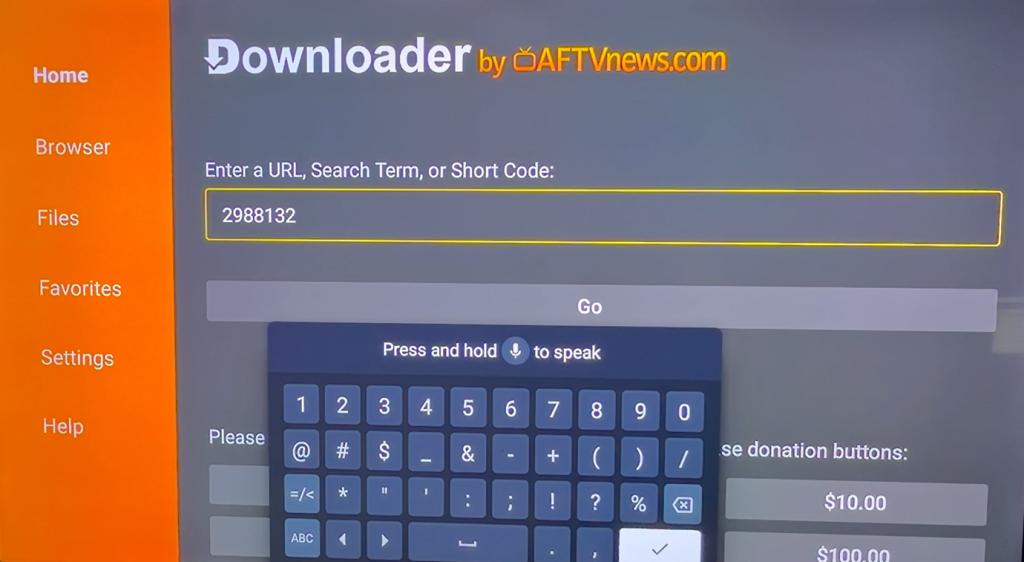

Begin here at the Home screen. You can always go to Home screen by pressing the HOUSE button on your remote.
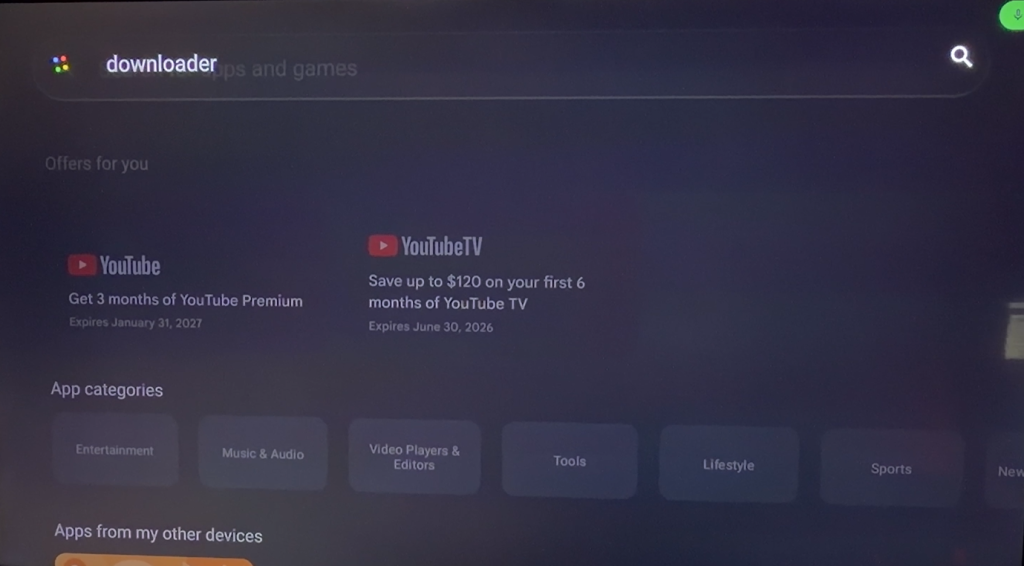
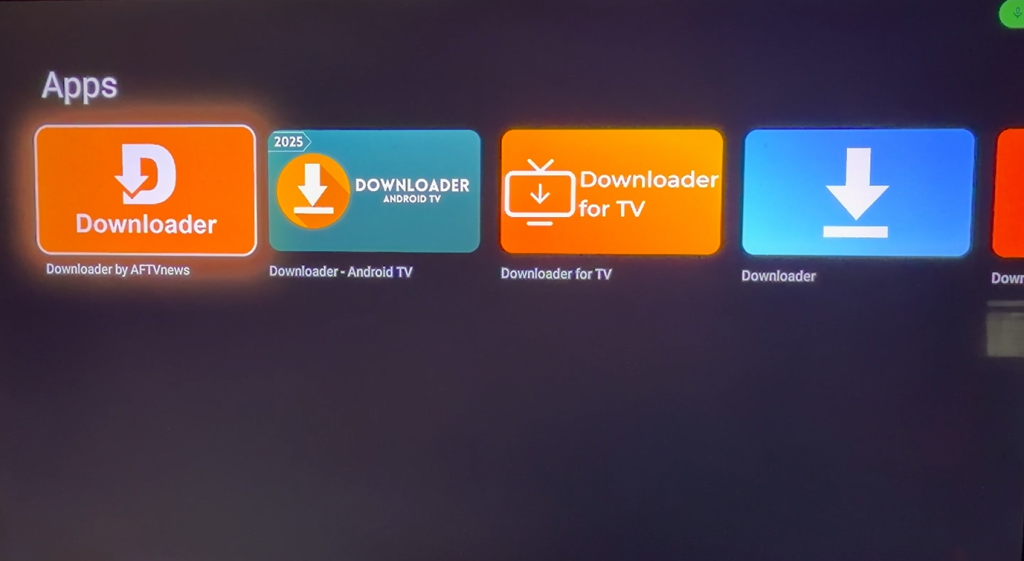
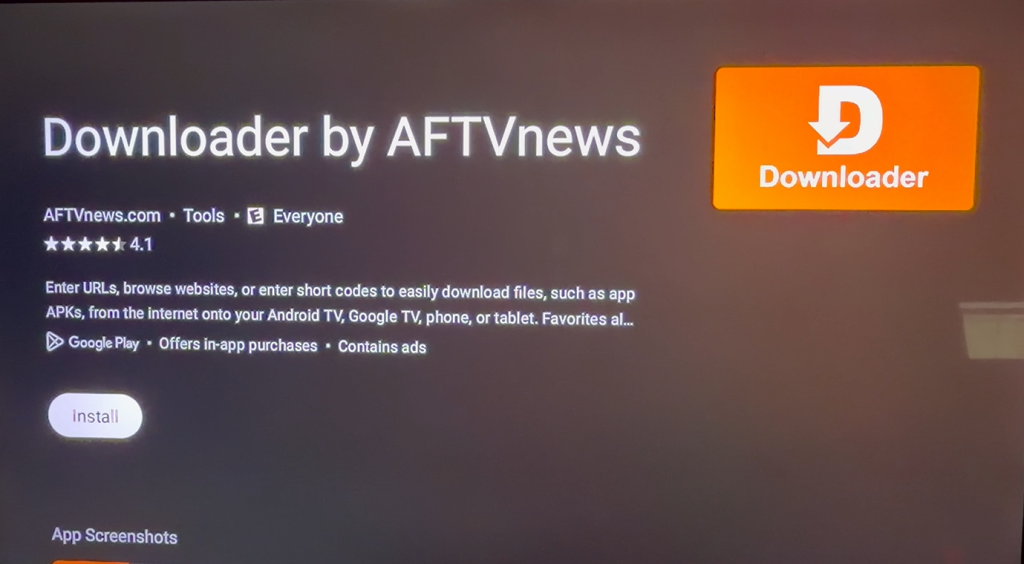
Install the free Downloader app by (AFTV NEWS) from Google Playstore. Make sure it’s Downloader by AFTVnews. The others are not free!
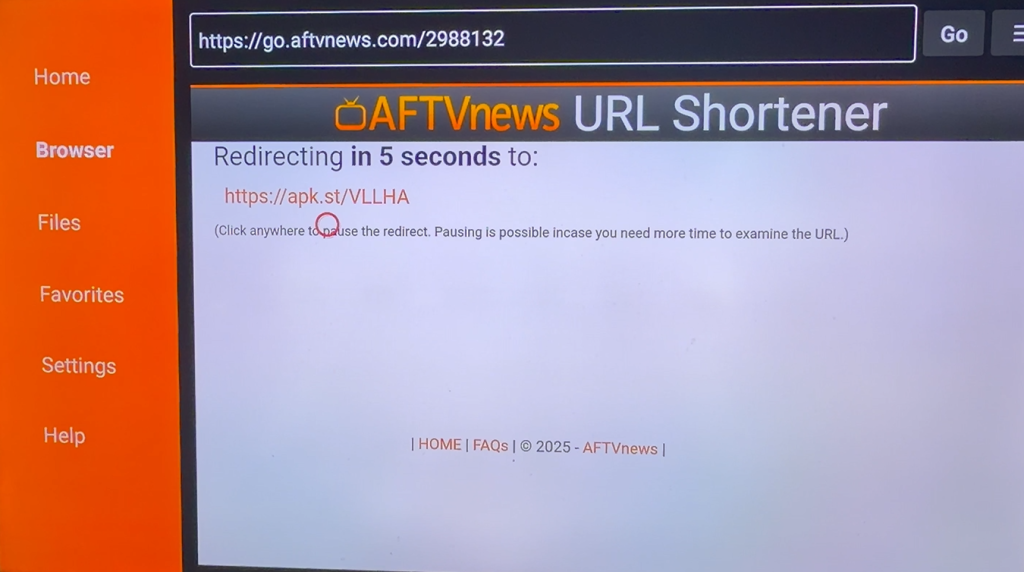
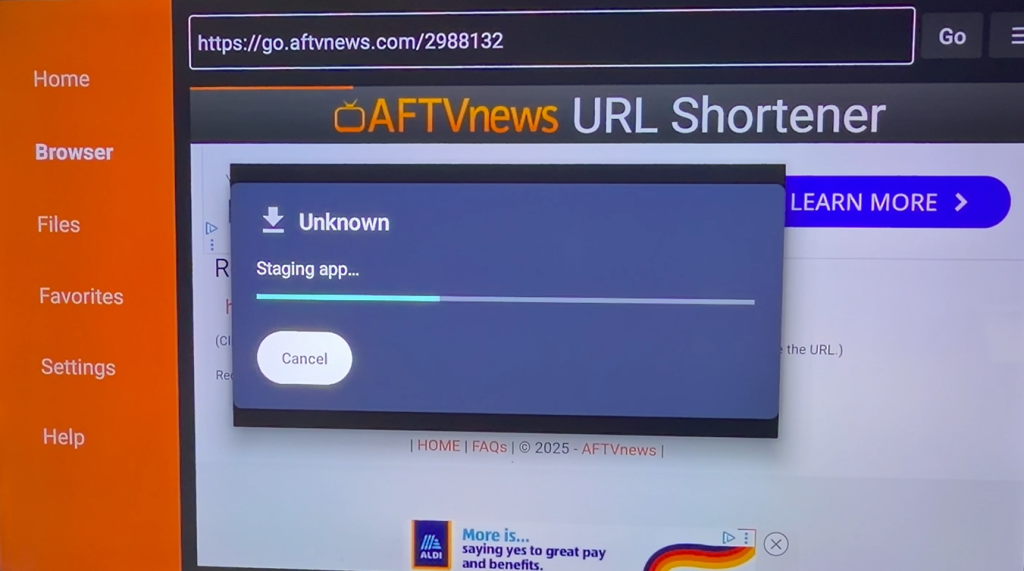
Enter this six digit code into the rectangular address bar. – 2988132
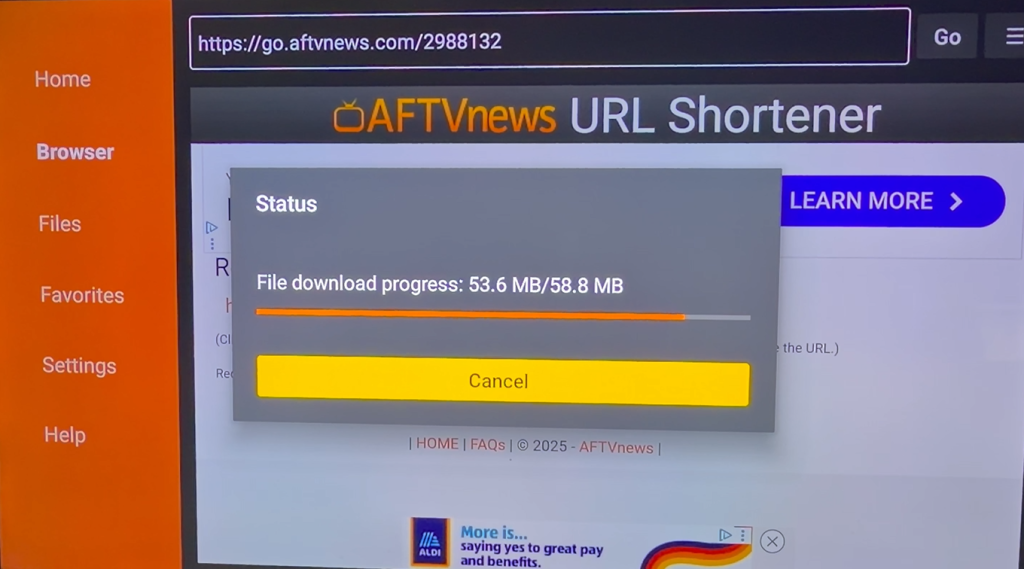
Press the CHECK mark button to begin the installation.
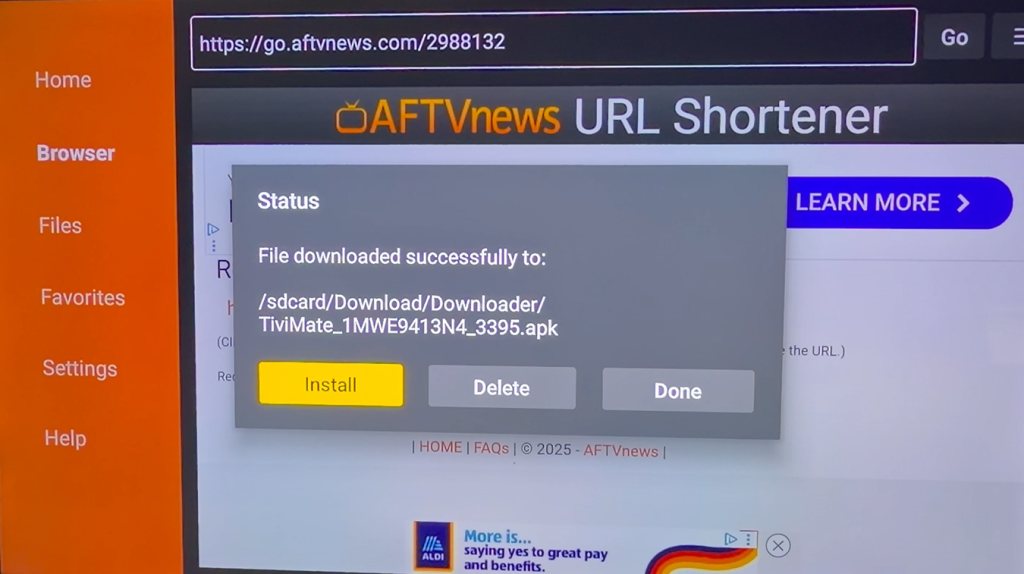
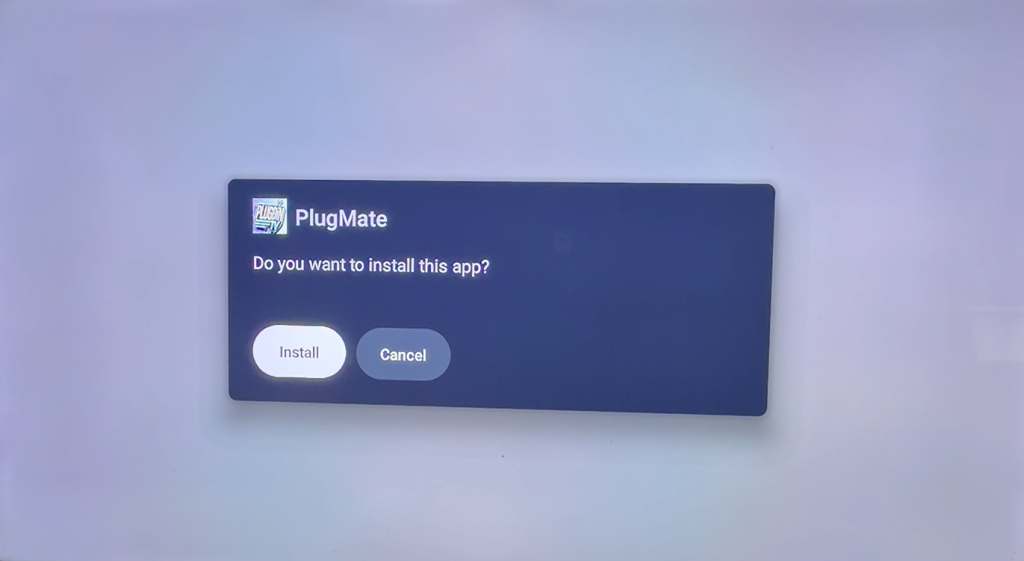
Select INSTALL to continue the installation process.
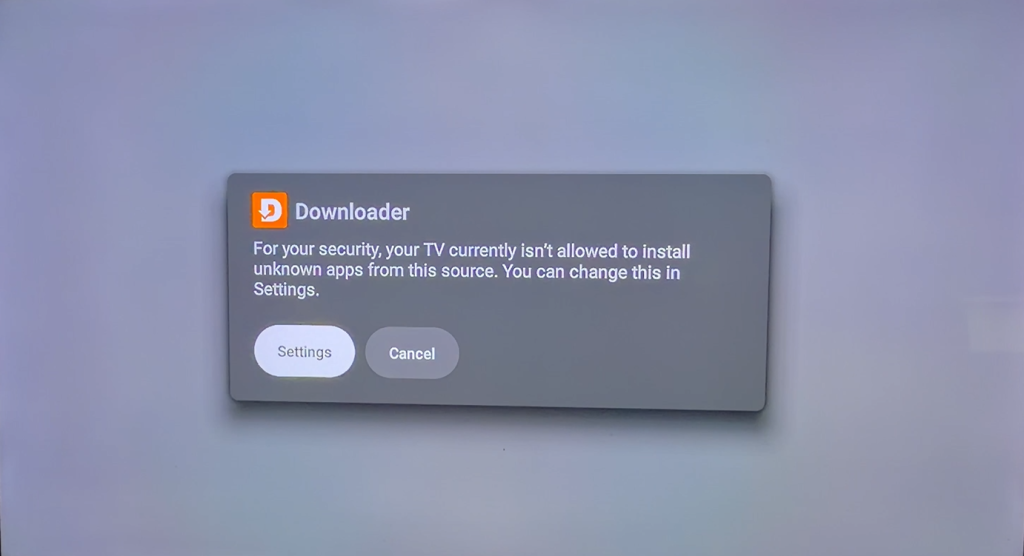
As a default your device may need permission to complete the installation. Press SETTINGS button.
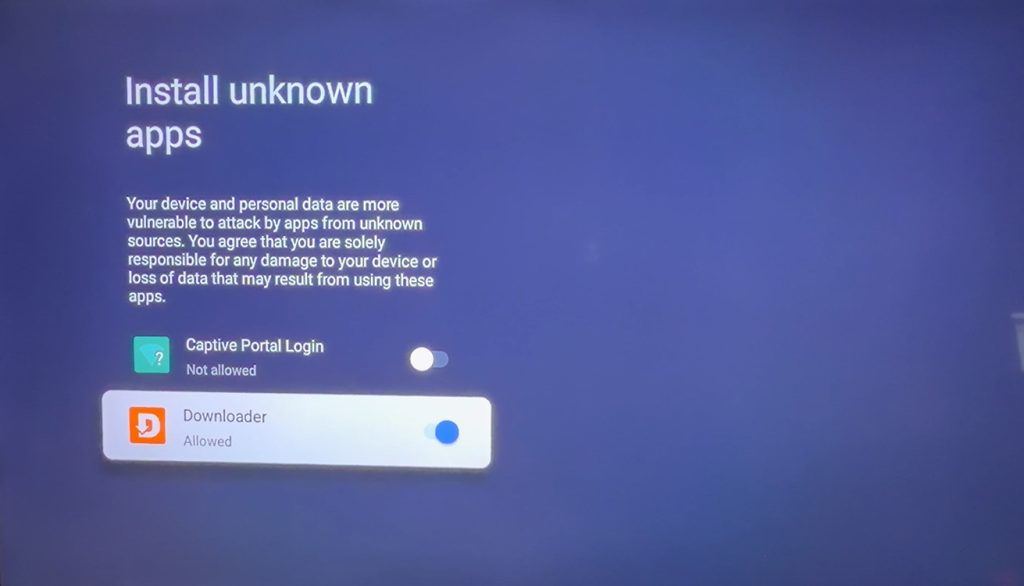
Select DOWNLOADER and allow permission by checking the switch to blue.
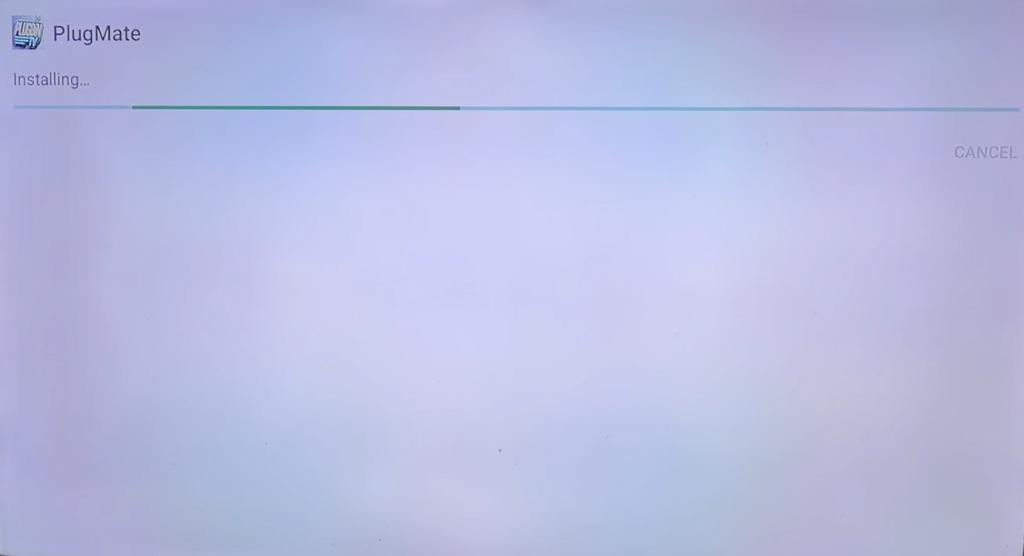
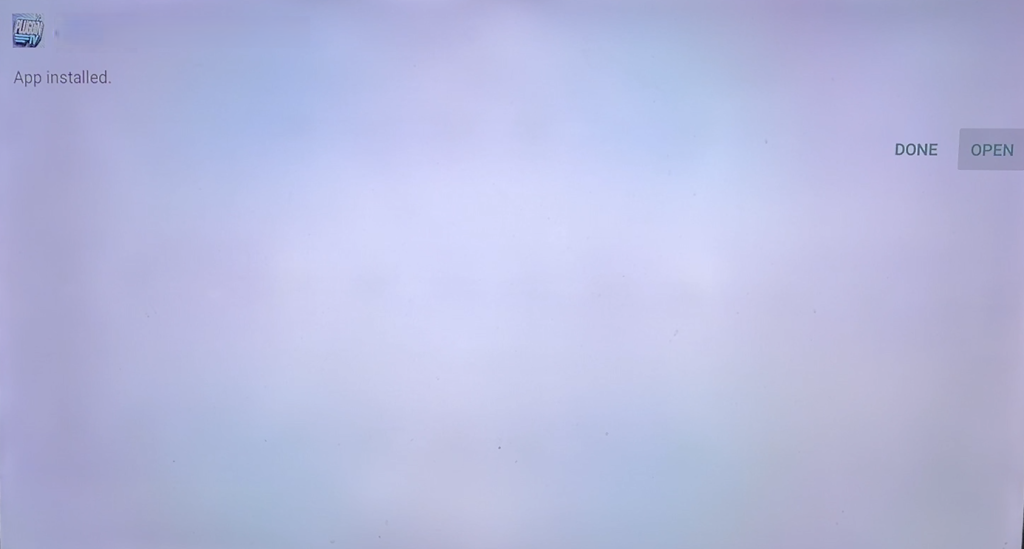
Continue with the intallation.
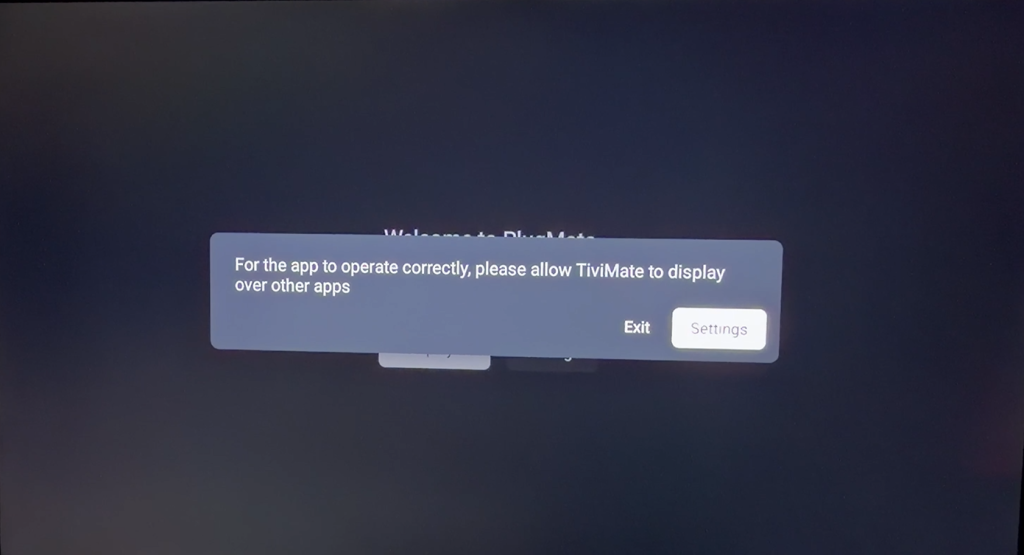
Open the PlugMate app. It may ask to allow TiviMate to display over other apps.
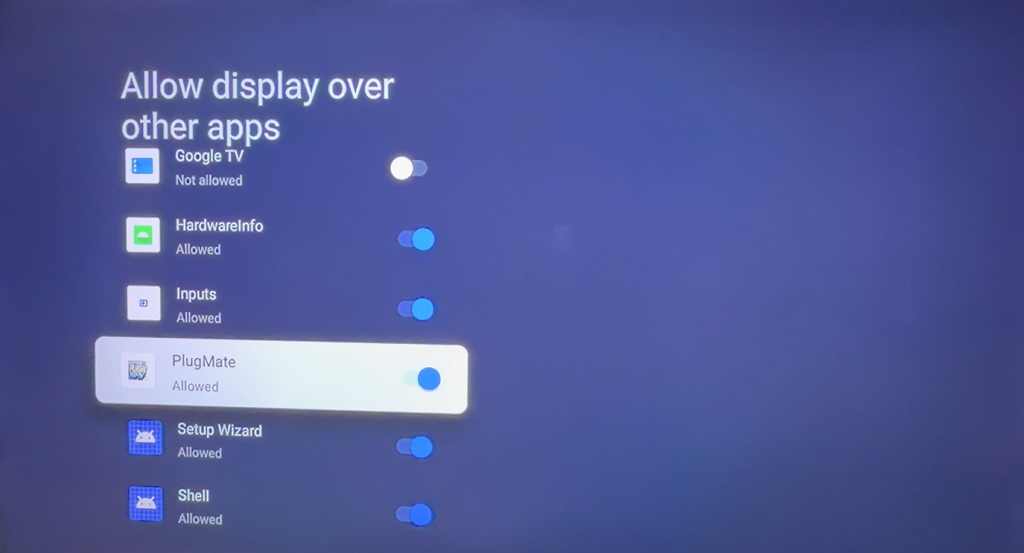
Press SETTINGS and allow permission.
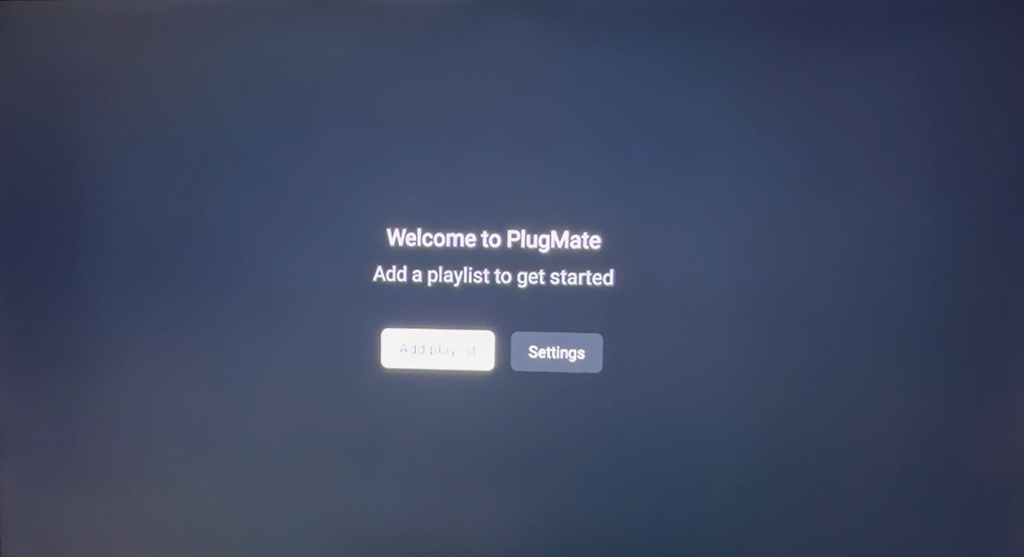
Go back and open the PlugMate app again. Now you can get started by adding a playlist.
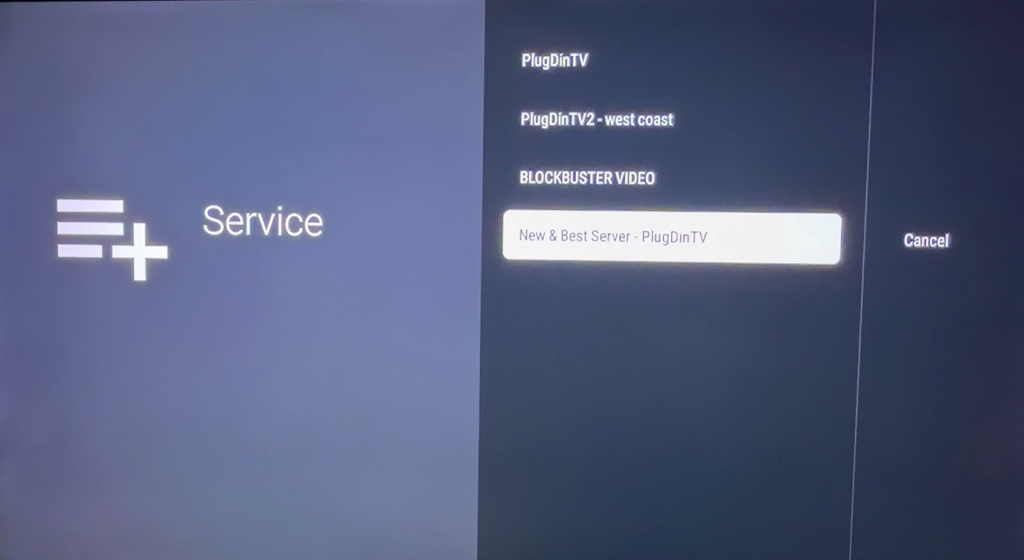
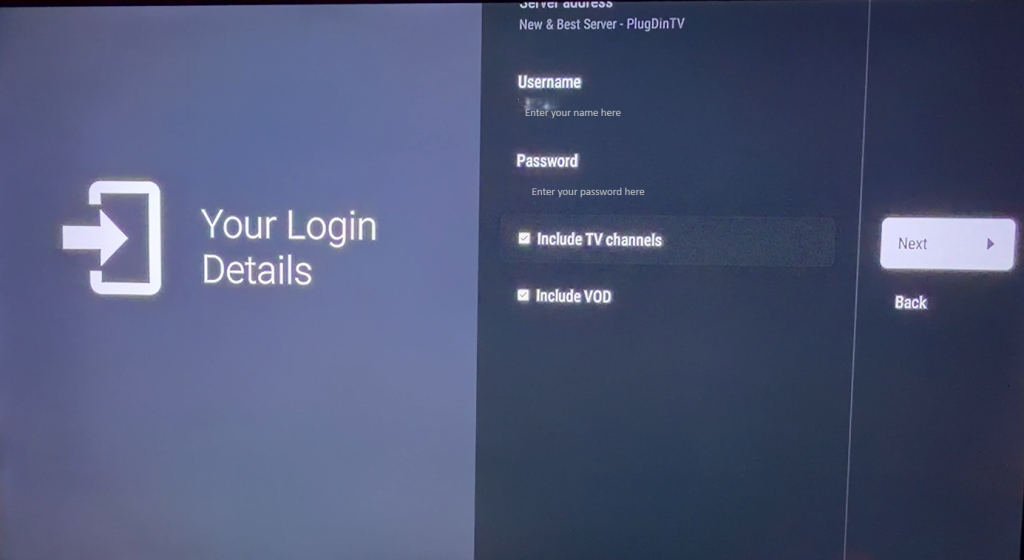
Press ADD PLAYLIST and then select New & Best Server – PlugDinTV
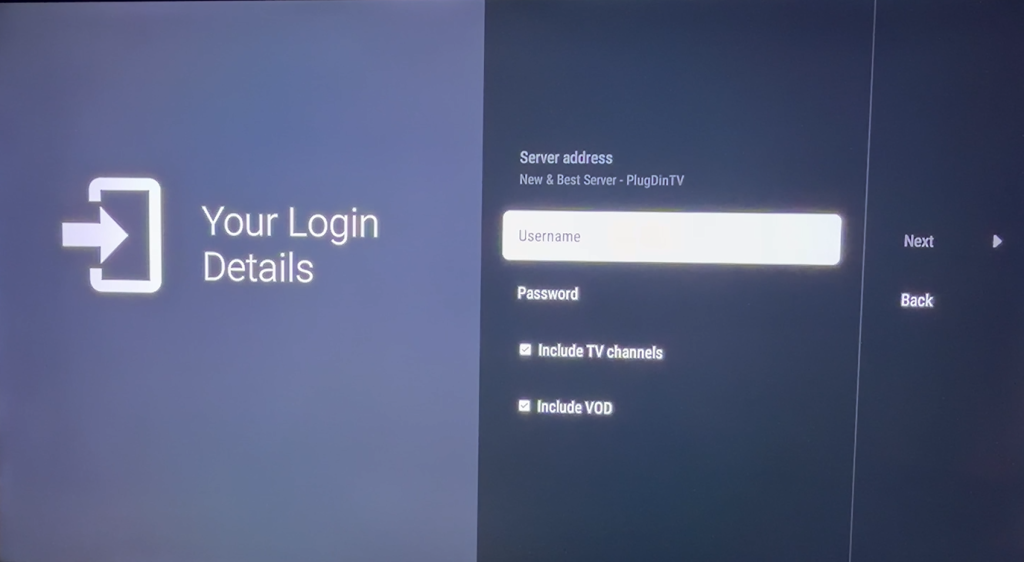
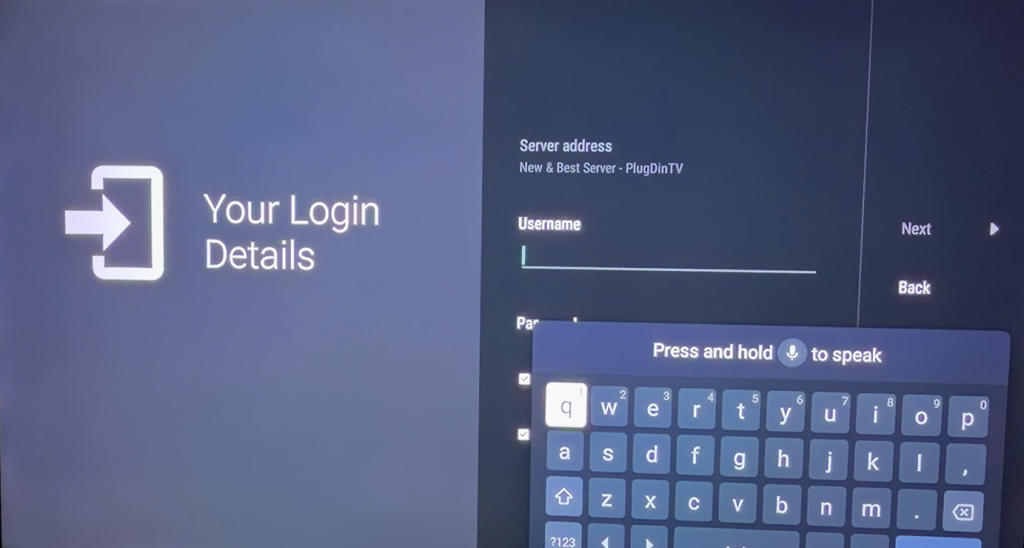
Enter the username and password provided in your email after checkout.
After your name and password are added, press NEXT. No need to click Include TV channels or VOD as they are already checked!
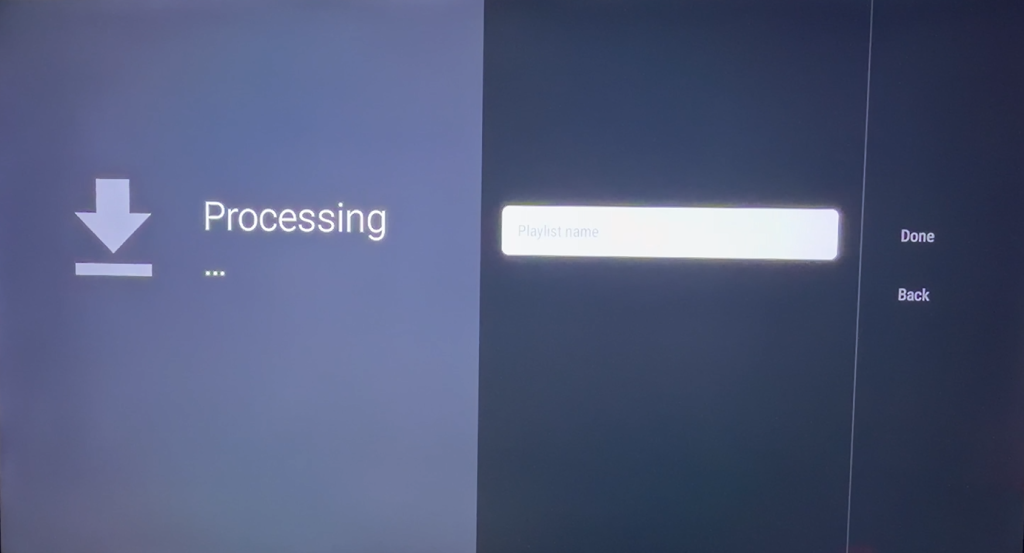
If name and password are entered correctly it will say PROCESSING. This takes approximately 3-5 minutes.
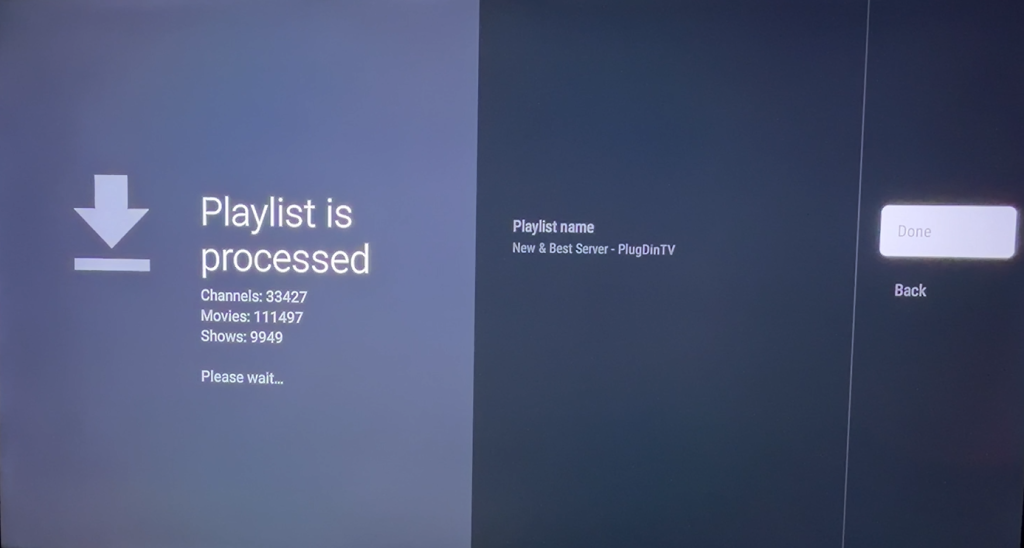
Press DONE after it says “Playlist is processed”
It may take a few more seconds to complete. Your channels will populate immediately after this process is complete. The TV guide will take a few minutes to generate. This is only for the initial installation.

Dedicated to saving you from the financial trap called
“Big Cable”
